
How to Set Up a WhatsApp AI Chatbot for Your Business (2026 Guide)
Everything you need to launch a WhatsApp AI chatbot: Meta requirements, connecting your number, welcome flows, native forms, handover and costs.
TL;DR: You need a Meta Business account, a phone number for the WhatsApp Business Platform, and a chatbot tool connected to it. With Embedded Signup the connection takes minutes. Reuse your website knowledge base, design a short welcome with buttons, collect details with native forms, set handover rules, and understand the 24-hour window before running campaigns.
WhatsApp Business app vs WhatsApp Business Platform
| WhatsApp Business app | WhatsApp Business Platform (API) | |
|---|---|---|
| Who replies | You, from a phone | A chatbot and a team inbox |
| Multiple agents | Limited | Yes |
| Automation | Quick replies, away messages | Full chatbot, forms, integrations |
| Cost | Free | Meta charges for template messages |
| Best for | Very small businesses | Businesses with steady enquiry volume |
A chatbot needs the Platform.
What you need before you start
- A Meta Business account (Business Manager). Business verification is recommended and needed for higher messaging limits.
- A phone number that can receive an SMS or voice call for verification. If it is already used on the WhatsApp app, it must be migrated or deleted from the app first.
- A display name that matches your business. Meta reviews it.
- A chatbot platform that connects to the WhatsApp Business Platform.
Step 1: Connect your number
In InfiBot, open the WhatsApp integration and click connect. Meta's Embedded Signup window opens, where you choose or create your business, add your number and set the display name. When you finish, InfiBot stores the connection for your bot automatically. A manual fallback exists if automatic discovery fails.
Step 2: Reuse your knowledge base
The WhatsApp bot uses the same website pages and PDFs as your website chatbot, so answers stay consistent everywhere and you update content once. If you haven't trained it yet, follow how to train a chatbot on your website and PDFs.
Step 3: Design the welcome
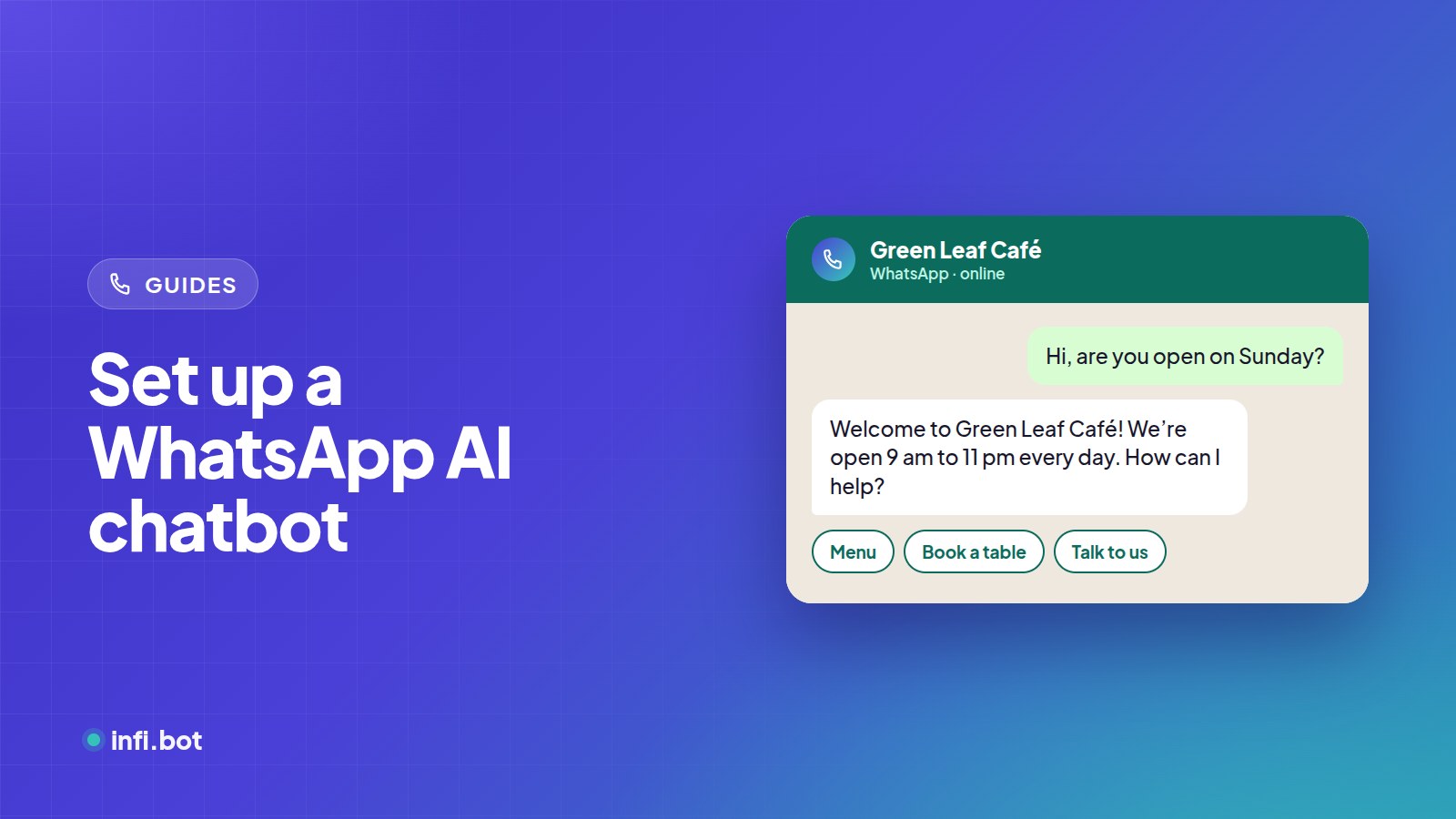
Customers on WhatsApp prefer tapping to typing. Keep the welcome short with up to three quick-reply buttons:
Hi! Welcome to Green Leaf Café. How can I help? [Menu] [Book a table] [Talk to us]
When you offer four or more options, InfiBot shows them as a scrollable list instead of buttons. You can also set how long before a returning customer sees the welcome again.
Step 4: Collect details with native forms
Instead of asking one question per message, a form step can open as a native WhatsApp form with dropdowns, checkboxes and date pickers. It feels like an app and is quicker to complete.
| Approach | Customer effort | Completion |
|---|---|---|
| One question per message | Many replies | Drops off after 3–4 questions |
| Native WhatsApp form | One screen | Higher for 3+ fields |
Step 5: Handle voice notes and photos
Many customers send voice notes. InfiBot transcribes them and answers as if they were typed. Photos of business cards or spec sheets can be read and turned into structured details, which saves typing for the customer.
Step 6: Decide when a human joins
Set keywords such as "agent", "complaint" or "refund" that alert your team. An agent replies from the dashboard and can pause the bot for that chat. Outside working hours, the bot tells the customer when to expect a person. See when a chatbot should hand over.
Step 7: Send leads where your team works
Qualified leads from WhatsApp go to the same destinations as website leads: email, Google Sheets or a webhook to your CRM.
Step 8: Follow up inside the 24-hour window
After a customer's last message you have 24 hours for free-form replies. Use automatic follow-ups for leads who go quiet, sent inside that window.
Step 9: Understand the costs
Replies to customers who message you first are free within the 24-hour window. Template messages, especially marketing ones, are charged by Meta. Read WhatsApp Business API pricing in India before running campaigns.
Launch checklist
- [ ] Number connected and display name approved
- [ ] Knowledge base tested with your top 20 questions
- [ ] Welcome message with clear buttons
- [ ] Forms for bookings or quotes
- [ ] Handover keywords and alert email set
- [ ] Lead delivery tested end to end
- [ ] WhatsApp link or QR code on your website, ads and printed material
How to get customers to message you
A WhatsApp chatbot only helps if customers start chats. The best entry points:
| Entry point | How | Tip |
|---|---|---|
| Website button | A "Chat on WhatsApp" link using https://wa.me/<your number> |
Pre-fill a message such as "Hi, I want prices" |
| QR code | Generate one from your wa.me link | Print it on shop counters, brochures, hoardings |
| Click-to-WhatsApp ads | Facebook and Instagram ads that open a chat | These chats start a free entry point window |
| Google Business Profile | Add your WhatsApp link to your profile | Catches local searchers |
| Email signatures and invoices | Add the wa.me link | Easy repeat contact |
Each entry point can pre-fill a different message, so you can tell which source brought the chat.
Frequently asked questions
Can I keep using WhatsApp on my phone?
Not on the same number. Once a number is on the Platform, you reply through the platform's dashboard instead of the phone app.
Do I need the green tick?
No. Verified badges are optional and granted by Meta to notable brands. Business verification is a separate, more important step.
How fast does the bot reply?
Usually within seconds, at any time of day.
Can the same bot answer on my website?
Yes. InfiBot uses one knowledge base for both channels, and conversations from both appear in one list you can filter by channel.
What if I want to stop using the Platform?
You can disconnect the number from the integration at any time.