
How to Add an AI Chatbot to Shopify and Wix (Step by Step)
Paste one line of code into your Shopify theme or Wix custom code settings and your AI chatbot is live on every page.
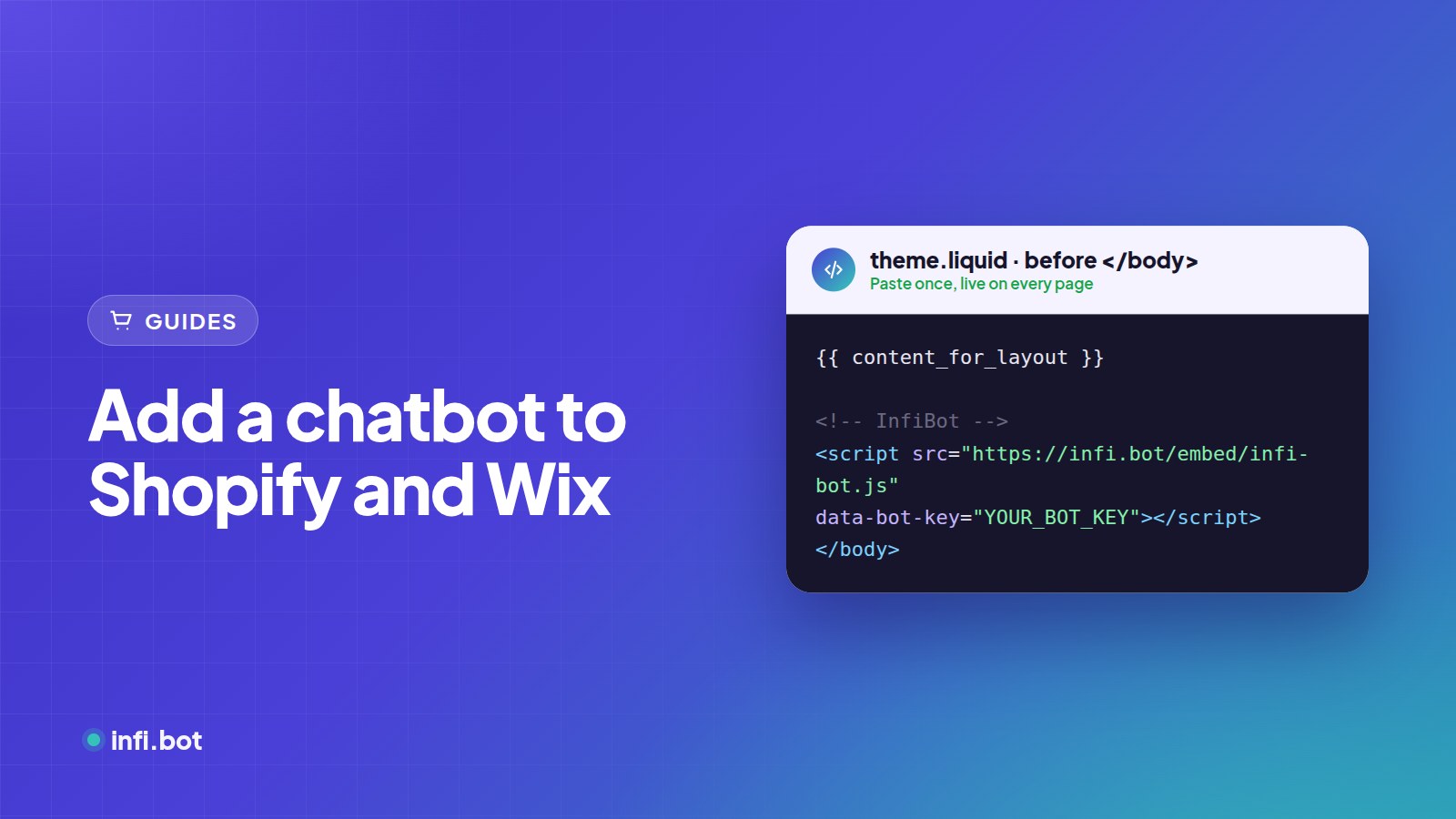
TL;DR: On Shopify, paste the embed code before </body> in theme.liquid. On Wix, add it under Settings → Custom Code and load it on all pages. Both take about five minutes.
Get your embed code
Train your chatbot first, then copy its embed code from the dashboard. It looks like this:
<script src="https://infi.bot/embed/infi-bot.js" data-bot-key="YOUR_BOT_KEY"></script>
Shopify
- In Shopify admin, go to Online Store → Themes.
- On your live theme, click ⋯ → Edit code.
- Open layout/theme.liquid.
- Paste the code just before
</body>. - Click Save and open your store in a private window to check.
Tip: Duplicate your theme before editing, so you can roll back.
What should a Shopify chatbot learn?
Approve your product collections, shipping, returns and size guide pages. Add PDF catalogues or care guides. See how to train a chatbot on your website.
Wix
- In your Wix dashboard, go to Settings → Custom Code (under Advanced).
- Click + Add Custom Code.
- Paste the embed code.
- Choose All pages and Load code once.
- Set placement to Body – end and click Apply.
Wix only allows custom code on sites with a premium plan and a connected domain.
Check it works
| Check | Expected result |
|---|---|
| Open the site on mobile | Chat button visible, not covering the cart |
| Ask a shipping question | Answer matches your shipping page |
| Leave your email in chat | Lead arrives in your inbox or Google Sheet |
Frequently asked questions
Will it slow down my store?
The script loads asynchronously and doesn't block page content.
Can it see order status?
Not by default. It answers from your content. Order lookups need a webhook integration.
Does it work on Shopify's checkout?
Shopify restricts scripts on checkout pages. The chatbot works on all store pages before checkout.
See the e-commerce solution for more ideas.