
How to Train an AI Chatbot on Your Website and PDFs (No Coding)
A step-by-step guide to training an AI chatbot on your own website pages and PDFs: what to include, how to test it, and how to keep it accurate.
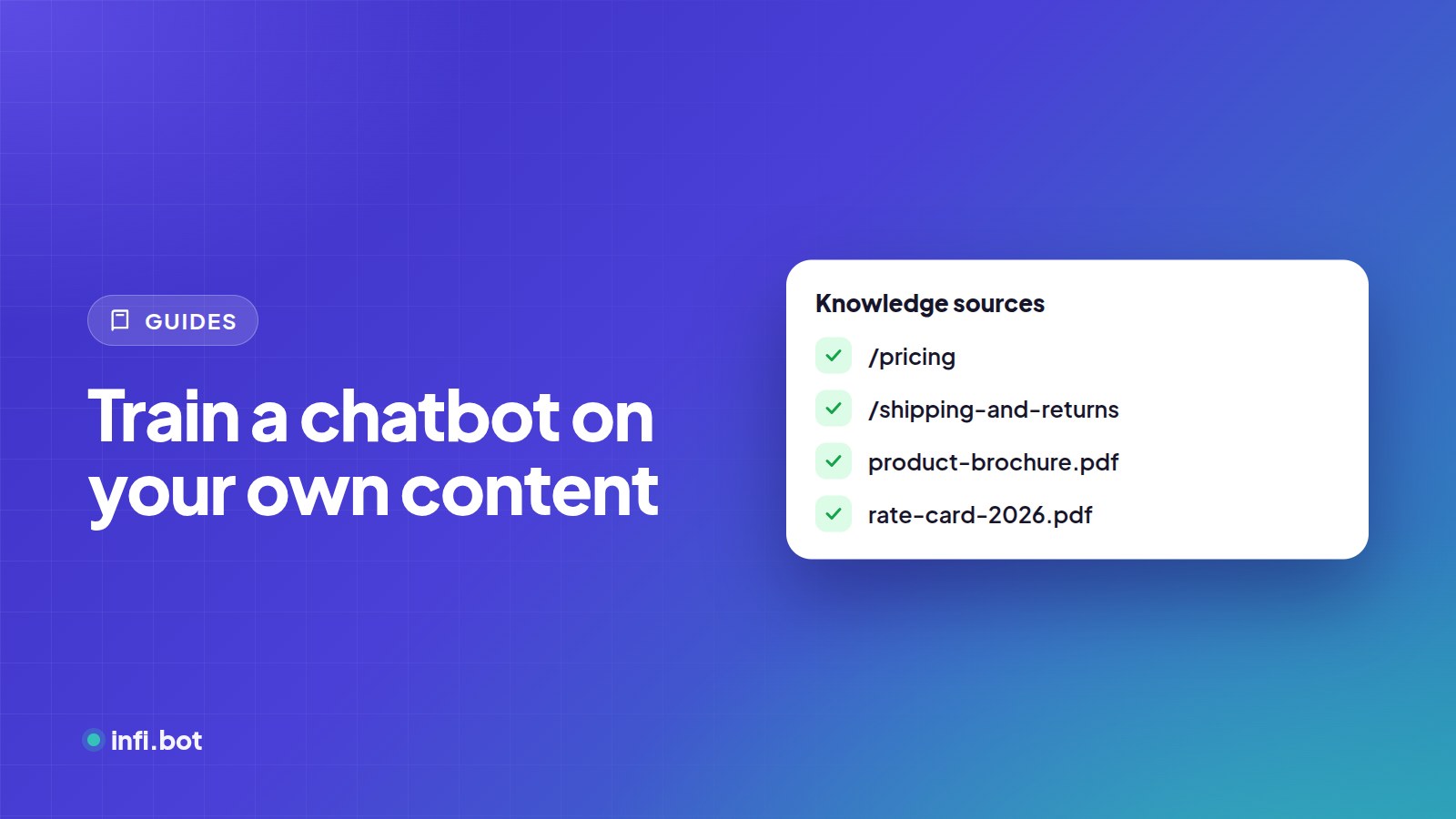
TL;DR: Choose the pages and documents that answer real customer questions, approve them, upload your PDFs, write short instructions with a fallback, test with real questions, then paste one line of code on your site. Keep it accurate by refreshing content on a schedule and reviewing chats weekly.
What does "training a chatbot on your data" mean?
You are not building a new AI model. You are giving an existing model a private library to read from. When a visitor asks a question, the chatbot searches your approved content for the most relevant passages and writes an answer from them. This approach is called retrieval-augmented generation, or RAG.
The result is a bot that knows your prices, policies and services, instead of giving generic internet answers.
| Approach | What happens | Good for |
|---|---|---|
| Retrieval (RAG) | The bot looks up your content for every question | Business chatbots, FAQs, support |
| Fine-tuning | A model is retrained on examples | Changing tone or format at scale |
| Prompt only | Facts pasted into instructions | A handful of facts |
For business chatbots, retrieval is the right choice: it stays current when you update a page, and you can see which content the bot relies on.
Step 1: Choose what the bot should learn
Good sources are the pages and files that answer customer questions:
- Service, product and pricing pages
- FAQ, shipping, returns, cancellation and policy pages
- Contact, location and opening-hours pages
- Brochures, price lists, menus, course catalogues and manuals as PDFs
Leave out:
- Old blog posts with outdated offers
- Login, cart and checkout pages
- Thin pages with little text (tag pages, empty categories)
- Anything you wouldn't want a customer quoted
More content is not better. Accurate content is better. Twenty good pages beat five hundred mixed ones.
Step 2: Add your website and approve pages
In InfiBot, enter your website address. InfiBot discovers the pages on your domain and shows them as a list. Nothing is learned until you approve it, so untick anything outdated or irrelevant.
Set a re-scrape interval (daily, every 7 days or every 30 days) so the bot refreshes its knowledge when your website changes. This is the simplest way to stop it quoting last month's prices.
Step 3: Upload your PDFs
Upload brochures, rate cards and manuals. Scanned PDFs work too: pages without a text layer are read with OCR, so photographed price lists still become searchable.
Tips for better PDF answers:
- Use the latest version only; delete old copies.
- Name files clearly, for example
price-list-2026.pdf. - Split very large manuals by topic if answers feel vague.
Step 4: Write the instructions
Give the bot a short persona, its boundaries, and a fallback. For example:
You are the assistant for Green Valley Clinic. Answer only from our content. Be brief and friendly. Do not give medical advice. If you don't know the answer, say so and offer to connect the visitor with our front desk.
| Include | Why |
|---|---|
| Who it represents | Sets tone and scope |
| What it must not do | Prevents risky answers |
| What to do when unsure | Stops guessing |
| What to offer next | Turns answers into leads |
Step 5: Test with real questions
Collect the 20 questions customers ask most, from your inbox, WhatsApp and staff. Then:
- Ask each one and note whether the answer is right, partly right or wrong.
- Include at least one question answered only in a PDF, to confirm documents were read.
- Ask something the bot should not know, to check the fallback.
- For every wrong answer, fix the source page or document, not just the bot.
Step 6: Put it on your website
Copy the one-line embed code and paste it before the closing </body> tag. Platform-specific steps are in our guides for WordPress and Shopify and Wix. The same knowledge base can also power your WhatsApp chatbot.
Step 7: Keep it accurate
- Review chats weekly. Twenty minutes reading recent conversations shows gaps fast.
- Fix sources, not symptoms. If the bot is vague about delivery times, your delivery page probably is too.
- Refresh after changes. New prices or policies should trigger a re-scrape or a new PDF.
Read more in why AI chatbots make things up.
Common mistakes
| Mistake | Fix |
|---|---|
| Approving every page on the site | Approve the 20 to 50 pages that answer real questions |
| Old prices in a PDF | Replace the file whenever prices change |
| No fallback instruction | Tell the bot what to do when it doesn't know |
| Testing only easy questions | Test edge cases and PDF-only answers |
| Never reviewing chats | Read real conversations weekly and fill the gaps |
Example: fixing a weak answer at the source
A furniture store's bot kept answering "Delivery usually takes a few days" to delivery questions. The website's delivery page said exactly that. After the page was rewritten:
Delivery within the city takes 2–3 working days. Outside the city, 5–7 working days. Assembly is free for orders above ₹20,000.
the bot gave a precise, useful answer the next day, with no change to the bot itself. Most "bad bot answers" are vague source pages.
Frequently asked questions
How long does training take?
Usually a few minutes for a small website. Larger sites take longer because each approved page is read and indexed.
Will the chatbot use information from the internet?
No. It answers from the content you approved, using general language skills only to phrase the reply.
Can I update the content later?
Yes. Add or remove pages and files at any time, or let scheduled re-scraping pick up website changes.
What file types work best?
Text-based PDFs work best. Scanned PDFs work through OCR, but clear scans give better results.
How do I know which content an answer came from?
Test answers against your pages. If an answer is wrong, search your approved pages and PDFs for the conflicting text.