
How to Add an AI Chatbot to Your WordPress Site in 5 Minutes
Three ways to add an AI chatbot to WordPress: a header-and-footer plugin, the theme editor, or a block theme. Copy, paste and publish.
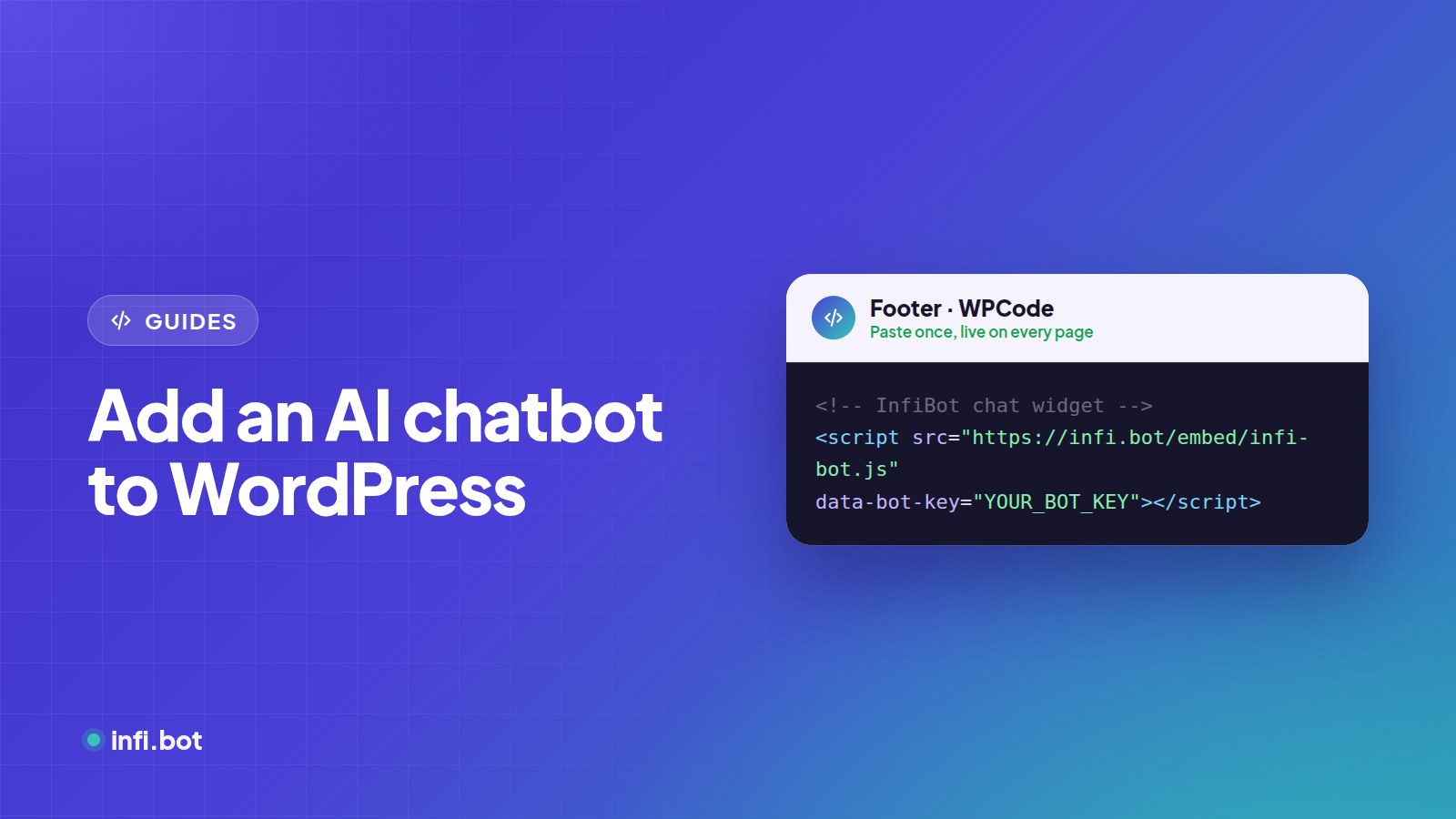
TL;DR: Copy your chatbot's one-line embed code, paste it into your site's footer with a header-and-footer plugin, and save. The chatbot appears on every page. No special WordPress plugin is required.
Before you start
You need:
- A trained chatbot. If you don't have one yet, see how to train a chatbot on your website and PDFs.
- Your embed code. In InfiBot it looks like this:
<script src="https://infi.bot/embed/infi-bot.js" data-bot-key="YOUR_BOT_KEY"></script>
- Admin access to WordPress.
Method 1: A header and footer plugin (recommended)
This is the safest method, because theme updates won't remove your code.
- Go to Plugins → Add New and install a code-snippet plugin such as WPCode.
- Open the plugin's Header & Footer screen.
- Paste the embed code into the Footer box.
- Click Save.
- Open your website in a private window and check the chat button appears.
Method 2: The theme file editor
Use this only if you are comfortable editing theme files, and preferably with a child theme.
- Go to Appearance → Theme File Editor.
- Open
footer.php. - Paste the code just before
</body>. - Click Update File.
A parent theme update will overwrite this change, which is why Method 1 is better.
Method 3: Block themes (Full Site Editing)
- Go to Appearance → Editor → Patterns → Footer.
- Add a Custom HTML block.
- Paste the embed code and save.
Show the chatbot on some pages only
With WPCode you can set display rules, for example only on service pages, or hide it on checkout.
Troubleshooting
| Problem | Fix |
|---|---|
| Chat button not showing | Clear your caching plugin and CDN cache |
| Button shows but no answers | Check the bot key matches your bot |
| Appears twice | Remove the code from one of the places you added it |
| Hidden behind other widgets | Change the widget position in your bot's appearance settings |
Frequently asked questions
Does the chatbot slow down WordPress?
The script loads asynchronously, so it doesn't block your page content.
Does it work with Elementor and Divi?
Yes. Use Method 1, or the builder's own custom code area.
Can it capture WooCommerce leads?
Yes. Leads are delivered to email, Google Sheets or a webhook, separately from WooCommerce orders.