
Send Chatbot Leads to Google Sheets Automatically (No Zapier Needed)
Connect your chatbot to Google Sheets so every qualified lead lands in a row your team already uses, with the columns you choose.
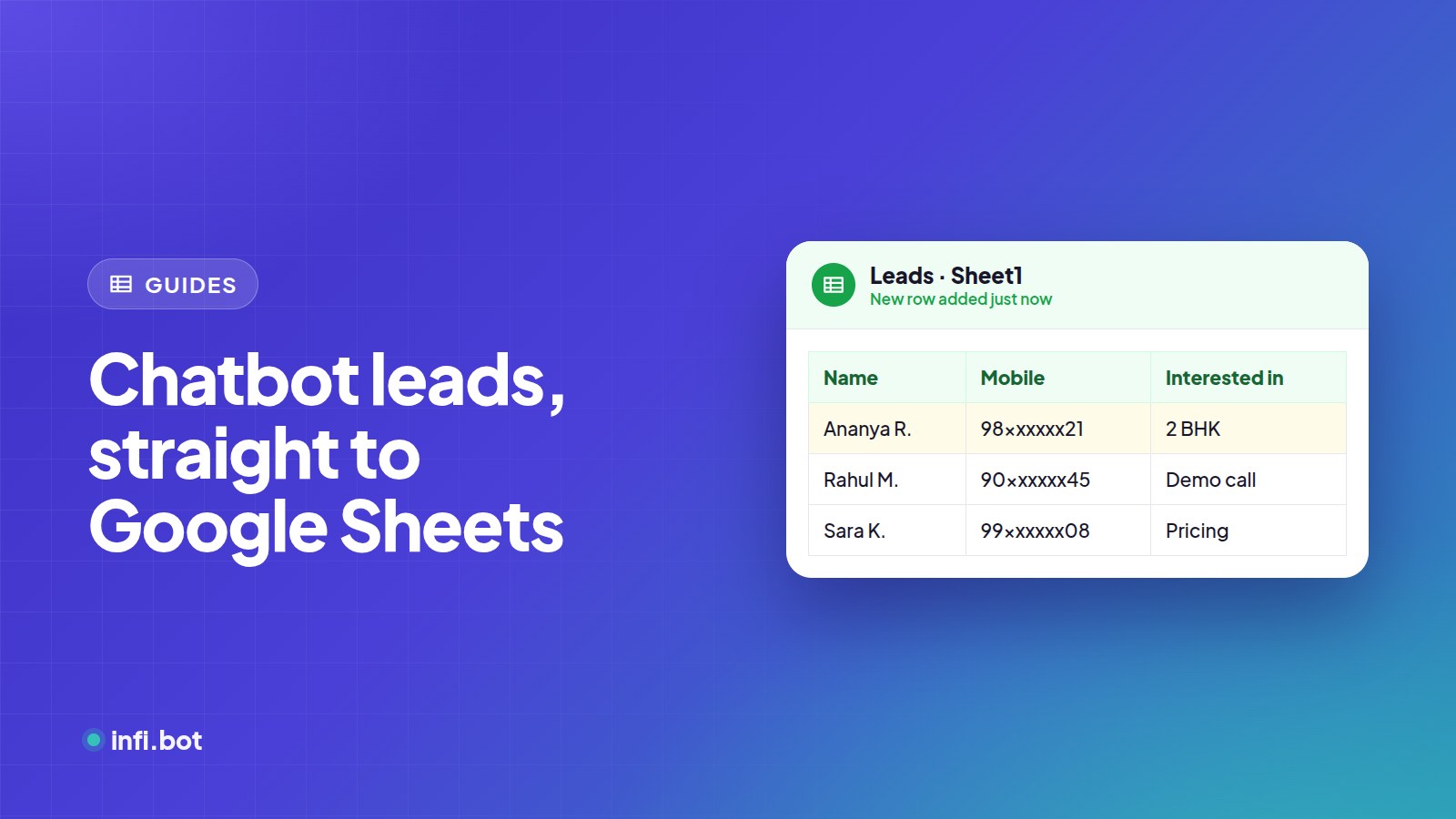
TL;DR: Connect Google Sheets once, pick the spreadsheet and worksheet, map chatbot fields to columns, and choose what makes a lead "qualified". Every new lead then appears as a row, with no Zapier or code.
Why Google Sheets?
Many small sales teams already live in a shared sheet. Sending leads there means no new tool to learn, easy filtering, and a simple bridge to other tools later.
Step 1: Connect your Google account
In InfiBot, open Integrations and connect Google Sheets. You sign in with Google and grant access. You can disconnect at any time.
Step 2: Choose the sheet
Pick the spreadsheet and the worksheet tab. InfiBot reads the header row so you can map columns by name.
Step 3: Map fields to columns
| Chatbot field | Example column |
|---|---|
| Name | Name |
| Phone | Mobile |
| Requirement | Interested In |
| Preferred time | Call Time |
| Conversation link | Chat |
You can set a default mapping for the whole bot, and a different mapping for specific form steps in your workflow.
Step 4: Decide what counts as a lead
Not every chat is a lead. Set requirements such as "has phone number" and "chose a service", and decide whether all or any must be met. Booking requests and link clicks can count too. See 12 lead capture questions your chatbot should ask.
Step 5: Test it
Start a chat on your site, give a test name and number, and check the row appears.
Other delivery options
- Email: each lead with recent conversation context.
- Webhook: send JSON to your CRM or automation tool.
Frequently asked questions
Do I need a paid Google account?
No. A standard Google account works.
What if I rename a column?
Re-open the mapping and select the new column name.
Can two bots write to the same sheet?
Yes. Use separate tabs or add a column for the bot name to tell them apart.